So far, we’ve created two projects, written all of about two lines of
code and we have both our brokered
component and
its
proxy/stub
ready to go. Now it’s time to build the Windows Runtime app that uses
the component. So far, things have been pretty easy – the only really
tricky and/or manual step so far has been registering the proxy/stub,
and that’s only tricky if you don’t want to run VS as admin.
Unfortunately, tying this all together in the app requires a few more
manual steps.
But before we get to the manual steps, let’s create the WinRT client
app. Again, we’re going to create a new project but this time we’re
going to select “Blank App (Windows)” from the Visual C# -> Store
Apps -> Windows App node of the Add New Project dialog. Note, I’m not
using “Blank App (Universal)” or “Blank App (Windows Phone)” because the
brokered WinRT component feature is not support on Windows Phone. Call
the client app project whatever you like, I’m calling mine
“HelloWorldBRT.Client”.
Before we start writing code, we need to reference the brokered
component. We can’t reference the brokered component directly or it will
load in the sandboxed app process. Instead, the app need to reference a
reference assembly version of the .winmd that gets generated
automatically by the proxy/stub project. Remember in the last
step when
I said Kieran Mockford is an MSBuild wizard? The proxy/stub template
project includes a custom target that automatically publishes the
reference assembly winmd file used by the client app. When he showed me
that, I was stunned – as I said, the man is a wizard. This means all
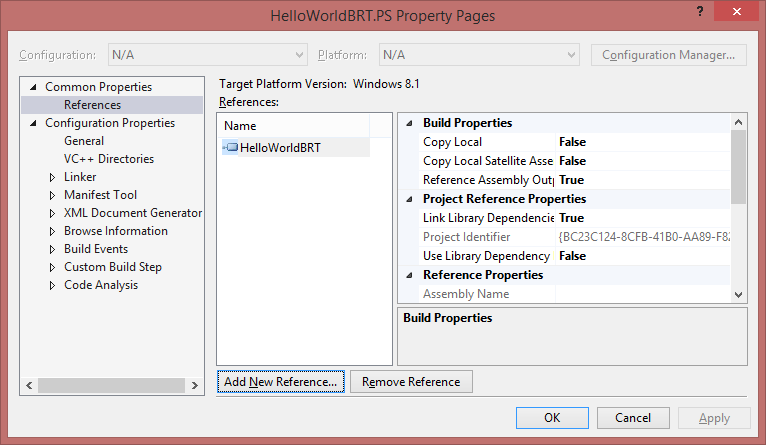
you need to do is right click on the References node of the WinRT
Client app project and select Add Reference. In the Reference Manager
dialog, add a reference to the proxy/stub project you created in step
two.
Now I can add the following code to the top of my App.OnLaunched
function. Since this is a simple Hello World walkthru, I’m not going to
bother to build any UI. I’m just going to inspect variables in the
debugger. Believe me, the less UI I write, the better for everyone
involved. Note, I’ve also added the P/Invoke signatures for
GetCurrentProcess/ThreadID and to the client app like I did in the
brokered component in step
one.
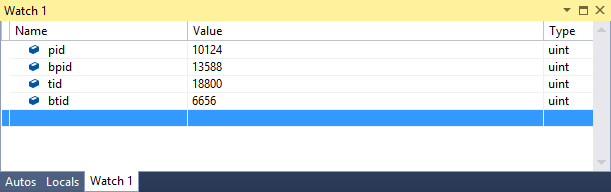
This way, I can get the process and thread IDs for both the app and
broker process and compare them.
var pid = GetCurrentProcessId();
var tid = GetCurrentThreadId();

var c = new HelloWorldBRT.Class();
var bpid = c.CurrentProcessId;
var btid = c.CurrentThreadId;
At this point the app will compile, but if I run it the app will throw a
TypeLoadException when it tries to create an instance of
HelloWorldBRT.Class. The type can’t be loaded because the we’re using
the reference assembly .winmd published by the proxy/stub project – it
has no implementation details, so it can’t load. In order to be able to
load the type, we need to declare the HelloWorldBRT.Class as a brokered
component in the app’s pacakge.appxmanifest file. For non-brokered
components, Visual Studio does this for you automatically. For brokered
components we have to do it manually unfortunately. Every activatable
class (i.e. class you can construct via “new”) needs to be registered in
the appx manifest this way.
To register HelloWorldBRT.Class, right click the Package.appxmanifest
file in the client project, select “Open With” from the context menu and
then select “XML (Text) editor” from the Open With dialog. Then you need
to insert inProcessServer
extension
that includes an ActivatableClass
element
for each class you can activate (aka has a public constructor). Each
ActivatableClass element contains an ActivatableClassAttribute element
that contains a pointer to the folder where the brokered component is
installed. Here’s what I added to Package.appxmainfest of my
HelloWorldBRT.Client app.
<Extensions>
  <Extension Category="windows.activatableClass.inProcessServer">
    <InProcessServer>
      <Path>clrhost.dll</Path>
      <ActivatableClass ActivatableClassId="HelloWorldBRT.Class"
                        ThreadingModel="both">
        <ActivatableClassAttribute
             Name="DesktopApplicationPath"
             Type="string"
             Value="D:\dev\HelloWorldBRT\Debug\HelloWorldBRT.PS"/>
      </ActivatableClass>
    </InProcessServer>
  </Extension>
</Extensions>
The key thing here is the addition of the DesktopApplicationPath
ActivatableClassAttribute. This tells the WinRT activation logic that
HelloWorldBRT.Class is a brokered component and where the managed .winmd
file with the implementation details is located on the device. Note, you
can use multiple brokered components in your side loaded app, but they
all have the same DesktopApplicationPath.
Speaking of DesktopApplicationPath, the path I’m using here is path the
final location of the proxy/stub components generated by the compiler.
Frankly, this isn’t an good choice to use in a production deployment.
But for the purposes of this walk thru, it’ll be fine.
Now when we run the app, we can load a HelloWorldBRT.Class instance and
access the properties. re definitely seeing a different app process IDs
when comparing the result of calling GetCurrentProcessId directly in
App.OnLoaded vs. the result of calling GetCurrentProcessId in the
brokered component. Of course, each run of the app will have different
ID values, but this proves that we are loading our brokered component
into a different process from where our app code is running.
Now you’re ready to go build your own brokered components! Here’s hoping
you’ll find more interesting uses for them than comparing the process
IDs of the app and broker processes in the debugger!
😄