Series: Writing an IronPython Debugger

18 posts

Writing an IronPython Debugger: Introduction

A while back I showed how you can use Visual Studio to debug IronPython scripts. While that works great, it’s lots of steps and lots of mouse work. I yearned for something lighter weight and that I could drive from the command line.

The .NET framework includes a command line debugger called MDbg, but after using it for a bit, I found it didn’t like it very much for IronPython debugging. Mdbg automatically sets a breakpoint on the main entrypoint function, but only if it can find the debugging symbols. So when you use Mdbg with the released version of IPy, the breakpoint never gets set. Instead, you have to trap the module load event, set a breakpoint in the python file you’re debugging, then stop trapping the module load event. Every Time. That gets tedious.

Another problem with MDbg is that it’s not Just-My-Code (aka JMC) aware. JMC is this awesome debugging feature that was introduced in .NET 2.0 that lets the debugger “paint” the parts of the code that you want to step thru (aka “My Code”). By default, Visual Studio marks code with symbols as “my code” and code without symbols as “not my code”. [1] We don’t ship symbols with IronPython releases, so Visual Studio does only steps thru the python code. MDbg doesn’t support JMC, so I often found myself stepping into random parts of the IronPython implementation. That’s even more tedious.

Luckily, the source code to MDbg is available. So I got the wacky idea to build a debugger specifically for IronPython. CPython includes pdb (aka Python Debugger, not Program Database) but we don’t support it because we haven’t implementedsettrace. Thus, ipydbg was born.

Over the course of this series of blog posts, I’m going to build out ipydbg. I have built out a series of prototypes so I fairly confident that I know how to build it. However, I’m not sure what it will look like at the end. If you’ve got any strong opinions on it one way or the other, be sure to email me or leave me comments.

BTW, major thanks to my VSL teammate Mike Stall (of Mike Stall’s .NET Debugging Blog). Without his help, I would probably still be trying to make heads or tails of the MDbg source.


  1. VS uses the DebuggerNonUserCode attribute to provide fine grained control of what is considered “my code” and should be stepped thru. ↩︎

Writing an IronPython Debugger: MDbg 101

Before I start writing any debugger code, I thought it would help to quickly review the .NET debugger infrastructure that is available as well as the design of the MDbg command line debugger. Please note, my understanding of this stuff is fairly rudimentary – Mike Stall is “da man” if you’re looking for a .NET debugger blogger to read.

The CLR provides a series of unmanaged APIs for things like hosting the CLR, reading and writing CLR metadata and – more relevant to our current discussion – debugging as well as reading and writing debugger symbols. These APIs are exposed as COM objects. The CLR Debugging API allows you to do those all the things you would expect to be able to do in a debugger: attach to processes (actually, app domains), create breakpoints, step thru code, etc. Of course, being an unmanaged API, it’s pretty much unavailable to be used from IronPython. Luckily, MDbg wraps this unmanaged API for us, making it available to any managed language, including IronPython.

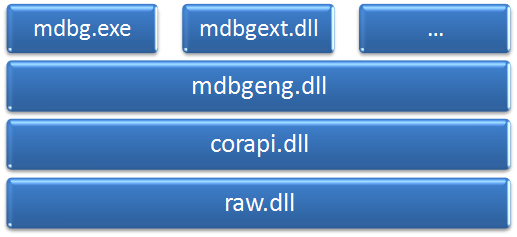
The basic design of MDbg looks like this:

image

At the bottom is the “raw” assembly, which contains the C# definitions of the unmanaged debugger API – basically anything that starts with ICorDebug and ICorPublish. Raw also defines some of the metadata API, since that’s how type information is exposed to the debugger.

The next level up is the “corapi” assembly, which I refer to as the low-level managed debugger API. This is a fairly thin layer that translates the unmanaged paradigm into something more palatable to managed code developers. For example, COM enumerators such as ICorDebugAppDomainEnum are exposed as IEnumerable types. Also, the managed callback interface gets exposed as .NET events. It’s not perfect – the code is written in C# 1.0 style so there are no generics or yields.

Where corapi is the low-level API, “mdbgeng” is the high-level managed debugger API. As you would expect, it wraps the low-level API and provides automatic implementations of common operations. For example, this layer maintains a list of breakpoints so you can create them before the relevant assembly has been loaded. Then when assemblies are loaded, it goes thru the list of unbound breakpoints to see if any can be bound. It’s also this layer that automatically creates the main entrypoint breakpoint.

Finally, at the top we have the MDbg application itself, as well as any MDbg extensions (represented by the … in the diagram above). The mdbgext assembly defines the types shared between MDbg.exe and the extension assemblies. MDbg has some cool extensions – including an IronPython extension – but for now I’m focused on building something as lightweight as possible, so I’m going to forgo an extensibility mechanism, at least for now.

My initial prototype was written against the high-level API. There were two problems with this approach. The first is that there’s no support for Just My Code in the high-level API. As I mentioned in my last post, JMC support is critical for this project. Adding JMC support isn’t hard, but I’m trying to make as few changes as possible to the MDbg source, since I’m not interested in forking and maintaining that code. Second, while the low-level API provides an event-based API (OnModuleLoad, OnBreakpoint, OnStepComplete, etc), the high-level API provides a more console-oriented looping API. I found the event-driven API to be cleaner to work with and I’m thinking it will work better if I ever build a GUI version of ipydbg. So I’ve decided to work against the low-level API (aka corapi).

I mentioned above that I didn’t want to change the MDbg source, but I did make one small change. The separation of corapi and raw into two separate assemblies is an outdated artifact of an earlier version of MDbg. So I decided to combine these two into a single assembly called CorDebug. Other than some simple cleanup to assembly level attributes to make a single assembly possible, I haven’t changed the source code at all.

Writing an IronPython Debugger: Hello, Debugger!

Since I’m guessing most of my readers have never build a debugger before (I certainly hadn’t), let’s start with the debugger equivalent of Hello, World!

import clr
clr.AddReference('CorDebug')

import sys
from System.Reflection import Assembly
from System.Threading import AutoResetEvent
from Microsoft.Samples.Debugging.CorDebug import CorDebugger

ipy = Assembly.GetEntryAssembly().Location
py_file = sys.argv[1]
cmd_line = ""%s" -D "%s"" % (ipy, py_file)

evt = AutoResetEvent(False)

def OnCreateAppDomain(s,e):
  print "OnCreateAppDomain", e.AppDomain.Name
  e.AppDomain.Attach()

def OnProcessExit(s,e):
  print "OnProcessExit"
  evt.Set()

debugger = CorDebugger(CorDebugger.GetDefaultDebuggerVersion())
process = debugger.CreateProcess(ipy, cmd_line)

process.OnCreateAppDomain += OnCreateAppDomain
process.OnProcessExit += OnProcessExit

process.Continue(False)

evt.WaitOne()

I start by adding a reference to the CorDebug library I discussed at the end of my last post (that’s the low level managed debugger API plus the C# definitions of the various COM APIs). Then I need both the path to the IPy executable as well as the script to be run, which is passed in on the command line (sys.argv). For now, I just use Reflection to find the path to the current ipy.exe and use that. I use those to build a command line – you’ll notice I’m adding the –D on the command line to generate debugger symbols.

Next, I define two event handlers: OnCreateAppDomain and OnProcessExit. When the AppDomain is created, the debugger needs to explicitly attach to it. When the process exits, we signal an AutoResetEvent to indicate our program can exit.

Then it’s a simple process of creating the CorDebugger object, creating a process, setting up the process event handlers and then running the process via the call to Continue. We then wait on the AutoResetEvent for the debugged process to exit. And voila, you have the worlds simplest debugger in about 30 lines of code.

To run it, you run the ipy.exe interpreter and pass in the ipydbg script above and the python script to be debugged. You also have to pass –X:MTA on the command line, as the ICorDebug objects only work from a multi-threaded apartment. When you run it, you get something that looks like this:

» ipy -X:MTA ipydbg.py simpletest.py
OnCreateAppDomain DefaultDomain
35
OnProcessExit

Simpletest.py is a very simple script that prints the results of adding two numbers together. Here, you see the event handlers fire by writing text out to the console.

For those of you who’d like to see this code actually run on your machine, I’ve created an ipydbg project up on GitHub. The tree version that goes with this blog post is here. If you’re not running Git, you can download a tar or zip of the project via the “download” button at the top of the page. It includes both the CorDebug source as well as the ipydbg.py file (shown above) and the simpletest.py file. It also has a compiled version of CorDebug.dll, so you don’t have to compile it yourself (for those IPy only coders who don’t have VS on their machine).

Writing an IronPython Debugger: Setting a Breakpoint

Now that we have a debugger process up and running, let start adding some actual features. First up, we want to be able to set breakpoints. One of the nice things MDbg does is auto-set a breakpoint on the entrypoint function. For ipydbg, we’re going to auto-set a breakpoint on the first line of the python file being debugged.

In order to set a breakpoint, we need debugger symbols. They allow us to translate between “line one of simpletest.py” and the actual location in the code and back. We’re all used to seeing the PDB files that are produced when we compile a C# assembly. Unsurprisingly, the symbol store binder provides a method to load these PDB files from disk. But where do IronPython debug symbols come from? I know from my extensive reading of the ipy.exe command line parameters that you pass –D to enable application debugging, but since all the IL is being generated in memory, how does the debugger get access to the PDB files?

It turns out the debugger API includes a UpdateModuleSymbols callback method that the runtime uses to notify the debugger when the symbols change. The debugger symbols are provided in an IStream, and then you use the symbol binder to get a symbol reader. The .NET Framework already provides a managed API for reading and writing debug symbols. However, that API doesn’t support loading symbols from a stream, so the MDbg code includes it’s own wrapper around the symbol binder API to include that functionality. Here’s some code to get the debug symbol reader for an updated module and iterate through the associated files:

sym_binder = SymbolBinder()

def OnUpdateModuleSymbols(s,e):
  print "OnUpdateModuleSymbols"

  metadata_import = e.Module.GetMetaDataInterface[IMetadataImport]()
  reader = sym_binder.GetReaderFromStream(metadata_import, e.Stream)

  for doc in reader.GetDocuments():
    print "t", doc.URL

process.OnUpdateModuleSymbols += OnUpdateModuleSymbols

If we run this version of ipydbg on simpletest.py with the IPy 2.0.1 release and the Python standard library installed, OnUpdatedModuleSymbols gets called six times, once for each python file that gets loaded when simpletest runs. (site.py, os.py, ntpath.py, stat.py, UserDict.py and simpletest.py). BTW, I tried running this code on the latest build of IPy (changeset 47624) and I’m getting a COM Interop exception. So for now, stick with 2.0.1.

Now that we can get these dynamically generated debug symbols, we can use them to create a breakpoint on the first line of the script being debugged. Everytime OnUpdateModuleSympols is called, I try to bind the initial breakpoint (unless it’s already been bound of course) by calling the following create_breakpoint function.

def create_breakpoint(doc, line, module, reader):
  line = doc.FindClosestLine(line)
  method = reader.GetMethodFromDocumentPosition(doc, line, 0)
  function = module.GetFunctionFromToken(method.Token.GetToken())

  for sp in get_sequence_points(method):
    if sp.doc.URL == doc.URL and sp.start_line == line:
      bp = function.ILCode.CreateBreakpoint(sp.offset)
      bp.Activate(True)
      return bp

  bp = function.CreateBreakpoint()
  bp.Activate(True)
  return bp

This code translates a given document/line into a function/offset where we can set a breakpoint. To do this, we use sequence points which as per Rick Byers are “used to mark a spot in the IL code that corresponds to a specific location in the original source”. So once we find the function that corresponds to a given line of code, we iterate over the sequence points until we find the one that matches the line we want to break on. If we find a matching sequence point, we set the breakpoint there. If we don’t, we set the breakpoint on the function itself. get_sequence_points is a simple wrapper around ISymbolMethod GetSequencePoints. The original API is pretty ugly to use – managing six separate arrays of information – so get_sequence_points turns it into a generator function you can iterate over.

Now that the breakpoint is set, we want to trap the breakpoint event as well. That’s easy enough, we create an event handler for process.OnBreakpoint similar to the OnUpdateModuleSymbols event above. Eventually, we’ll have the ability to step when we break, but for now I’m just going to print out the current location when the breakpoint is hit. This is kind of the reverse of the operation above. Setting a breakpoint means going from a source location to an IL offset within a function. Printing the current location means going from an IL offset in a function back to the source location. Here’s the function to do that:

def get_location(reader, thread):  
  frame = thread.ActiveFrame  
  function = frame.Function  

  offset, mapping_result = frame.GetIP()  
  method = reader.GetMethod(SymbolToken(frame.Function.Token))  

  real_sp = None  
  for sp in get_sequence_points(method):  
    if sp.offset > offset:
      break  
    if sp.start_line != 0xfeefee:
      real_sp = sp  

  if real_sp == None:  
    return "Location (offset %d)" % (offset)  

  return "Location %s:%d (offset %d)" % (  
    Path.GetFileName(real_sp.doc.URL), real_sp.start_line, offset)  

def OnBreakpoint(s,e):
  print "OnBreakpoint", get_location(
    symbol_readers[e.Thread.ActiveFrame.Function.Module], e.Thread)

Given a symbol reader and a debug thread, get_location returns a location string. It loops thru the sequence points, similar to create_breakpoint, in order to find the closest corresponding line of python code to the current offset (check out Mike Stall’s blog as for why I’m checking for 0xfeefee). In order to make this work, I need the symbol reader for the module that I retrieved in OnUpdateModuleSymbols. For now, I’m stashing the reader in a global dictionary keyed by the module named symbol_readers where OnBreakpoint can access it.

Ipydbg isn’t interactive yet, but it is now running, setting a breakpoint and successfully breaking at that breakpoint. As usual, the latest version of ipydbg is up on GitHub.
Writing an IronPython Debugger: Adding Interactivity

Now that ipydbg can set a breakpoint, it’s time to add some interactivity to the app. MDbg supports dozens of commands and currently ipydbg supports none. I’d love for ipydbg to support a wide range of commands like MDbg does, but for now let’s keep it simple and start with two: Continue and Quit. These aren’t very interesting as commands go, but that lets me focus this blog post on adding basic interactivity and future posts on specific commands.

First off, we have to understand how the CorDebug managed API supports interactivity. As we’ve seen, callbacks into the debugger are surfaced as managed events. If we look at the base class for all the debugger event arguments, we see that it exposes a Continue property. If you want the debugger to automatically continue after the event handler finishes running, you set the Continue property to true (which is the default). If you want the debugger to stay paused while you provide the developer a chance to poke around, you set Continue to false. In that case, the debugger stays paused until call process.Continue explicitly.

Once we set the Continue property to false, we need a mechanism to signal the main thread of execution that it’s time to wake up and ask the user what they want to do next. Of course, that’s what WaitHandle and it’s descendents are for. In fact, we’re already using an AutoResetEvent in OnProcessExit to signal that the debugged app has exited so we should exit the debugger. However, now we have two different signals that we want to send: exit the debugger or enter the input loop. I decided to differentiate by using two separate AutoResetEvents:

terminate_event = AutoResetEvent(False)  
break_event = AutoResetEvent(False)  

def OnProcessExit(s,e):  
  print "OnProcessExit"  
  terminate_event.Set()  

def OnBreakpoint(s,e):  
  print "OnBreakpoint", get_location(  
    symbol_readers[e.Thread.ActiveFrame.Function.Module], e.Thread)  
  e.Continue = False  
  break_event.Set()  

#code to create debugger and process omitted for clarity

handles = Array.CreateInstance(WaitHandle, 2)  
handles[0] = terminate_event  
handles[1] = break_event  

while True:  
  process.Continue(False)  

  i = WaitHandle.WaitAny(handles)  
  if i == 0:  
    break  

  input()

Instead of a single call to process.Continue I had before, I’ve created an infinite “while True” loop that calls Continue, waits for one of the events to signal, then either exits the loop of enters the input loop (via the input function). Since there are two AutoResetEvents, I need to use the WaitAny method to wait for one of them to signal. WaitAny takes an array, which is kind of clunky to use from IronPython since the array has to be strongly typed. It would be much more pythonic if I could call WaitHandle.WaitAny([terminate_event, break_event]). WaitAny then returns an index into the array indicating which one received the signal. If it was the terminate_event that signaled, I exit the loop (and the application). Otherwise, I enter the input loop. Notice, by the way, in OnBreakpoint that I’m both setting Continue to false and signaling the break_event.

The “input loop” needs to be a loop because the user may want to type in multiple commands before letting the debugged app continue to execute. This means that the input function is implemented as another “while True” loop. When the user does chooses a command that implies the process should continue, I simply exit out of the input function and the outer “while True” loop above executes the continue and waits for a signal.

Here’s what the input function looks like right now with our two basic commands:

def input():
  while True:
    Console.Write("» ")
    k = Console.ReadKey()

    if k.Key == ConsoleKey.Spacebar:
      Console.WriteLine("nContinuing")
      return  
    elif k.Key == ConsoleKey.Q:
      Console.WriteLine("nQuitting")
      process.Stop(0)
      process.Terminate(255)
      return
    else:
      Console.WriteLine("n Please enter a valid command")

I’ve mapped “q” to quit the debugger and spacebar to continue. Since I’m using Console ReadKey, you only have to type the key in question – no return needed. For continue, we don’t do anything but exit the input loop by returning. Continue gets called as part of the other loop and since we haven’t/can’t add additional breakpoints the debugged app will run until it ends. For quit, I call the Terminate method on process, hard coding the return value to 255. However, Terminate implicitly continues the debugged process. Since you can’t continue a running process, the call to Continue in the outer loop throws an exception. I avoid this exception by adding the call to Stop before Terminate. As per the Stop docs, the debugger maintains a “stop counter” and only resumes the debugged process when the counter reaches zero.  Calling Stop increases the stop counter by one, calling Terminate decreases it by one, then the outer loop Continue  call decreases it to zero and the process continues, terminates and fires the OnProcessExit event handler as usual.

Now that we have a basic interactive loop, I’ll be able to add more interesting commands. I’m guessing at some point, I’ll need to refactor input a bit – I’m guessing a huge if/elif/else statement is going to get ugly fast, but I’ll worry about that when it gets out of hand. As usual, the latest ipydbg source is up on GitHub.

← All series